Uncovering critical usability issues in WorkPoint Express 365 email management
WHO: WorkPoint 365 / WorkPoint Express 365 (email management software for Outlook)
WHAT: Qualitative UX research, research planning, user interviews and usability testing
RESULT: Only 33% of users could successfully save attachments or save emails with attachments
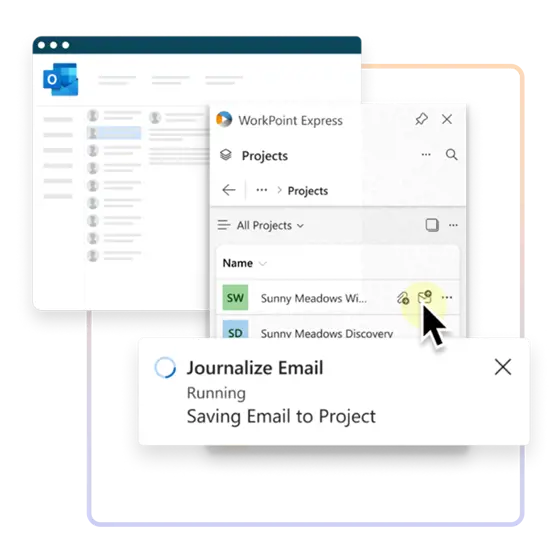
Project summary
I helped uncover a critical usability issue in the new WorkPoint Express 365: the majority of users could not successfully save attachments or save emails with their attachments. In usability testing with 15 participants, only 33% completed these core tasks successfully.
Working closely with the product team, we aligned early on business goals, focused the research on the highest risk actions, and delivered clear, actionable recommendations to improve the product.
Problem statement
After the redesign of WorkPoint 365, stakeholders shared a key concern. They expected users would have difficulty saving attachments, journalizing emails (saving emails into the system), and sharing emails or attachments with relevant team members.
User and needs
WorkPoint Express 365 is a B2B product sold to companies whose employees manage high volumes of important emails.
The goal was simple: make sure emails are not missed, attachments are properly saved, and relevant messages can be shared with the right team members inside WorkPoint 365.
My role in the project
I joined the project as a UX Research consultant.
I collaborated closely with the product specialist (who was also the lead developer for WorkPoint Express 365), kept the product manager and senior stakeholders informed at every step, and made sure the research stayed tightly aligned with their business goals.
The mandate
Discover how users interact with the new WorkPoint Express 365, specifically whether they can successfully save attachments, journalize emails, and share emails.
After several alignment meetings with stakeholders, we narrowed the focus to the three most important actions: saving attachments, journalizing emails, and sharing emails. We put heavier emphasis on saving attachments because, after reviewing the prototype, I was concerned the save attachment icons were confusing and lacked clear labels.
Issues with recruiting participants
Finding external users who already used WorkPoint Express 365 proved difficult.
I suggested we recruit internal employees who matched the target profile: people who manage a high volume of emails and had not seen the new prototype. Whether they had used older versions was less important. The product would also meet first time users, so testing that first time experience was actually an advantage.
Talking to users
Before the usability sessions, I conducted short interviews with internal employees.
The goal was to understand their roles, confirm they fit the target profile, learn about any previous experience with older versions of WorkPoint Express 365, their overall experience with Microsoft Outlook, and whether they had used similar tools. These conversations also helped me screen willing participants for the upcoming usability studies.
Preparing the studies
We had already developed realistic use case scenarios so participants could work through tasks that felt like real work.
Before the actual sessions, I ran a mock usability test with the product manager and a software engineer. Their feedback helped me refine the session flow and make the real studies more efficient.
What the usability study revealed
Percentage of participants who completed each task successfully
Saved an email together with its attachment
33%5/15
Saved an attachment from an email
33%5/15
Transferred an email or attachment from one file to another
40%6/15
Shared a saved email or attachment
80%12/15
Renamed the file
80%12/15
Deleted the email or attachment
93%14/15
Users struggled to tell the difference between saving an email and transferring an email (together with its attachments) to another location or file.
HOW PARTICIPANTS SAVED ATTACHMENTS
Most users completely ignored the dedicated “save attachments” icon. Instead, they clicked the three dots menu for more options. When asked why, they said:
“I didn’t even notice or focus on the action”
“It’s just something I’m used to doing”
The save attachment icon itself was also confusing because of the right pointing arrow on it. The icon next to it (another quick action) caused even more confusion due to its up arrow.
THE TRANSFER PROCESS FELT SLOW
Participants who tried to move an email or attachment to another file said the process required too many steps. They regularly move emails and attachments and felt this should be available as a quick action, just like saving emails and saving attachments.
Clear recommendations from the research
The strongest suggestions focused on making the two icons for saving emails and saving attachments clearer. The confusing arrows should be removed.
I also noted in the usability report that an upward arrow on a letter icon can easily be read as “sending,” while a downward arrow better signals “received.”
The data strongly supported treating the transfer of emails and attachments as a quick action. Doing so would remove unnecessary friction and improve the overall usability of WorkPoint Express 365.